Business admin
How to Recover Your Records If Your Phone Is Lost or Broken
What to think about before and after losing access to the phone that holds your working records.
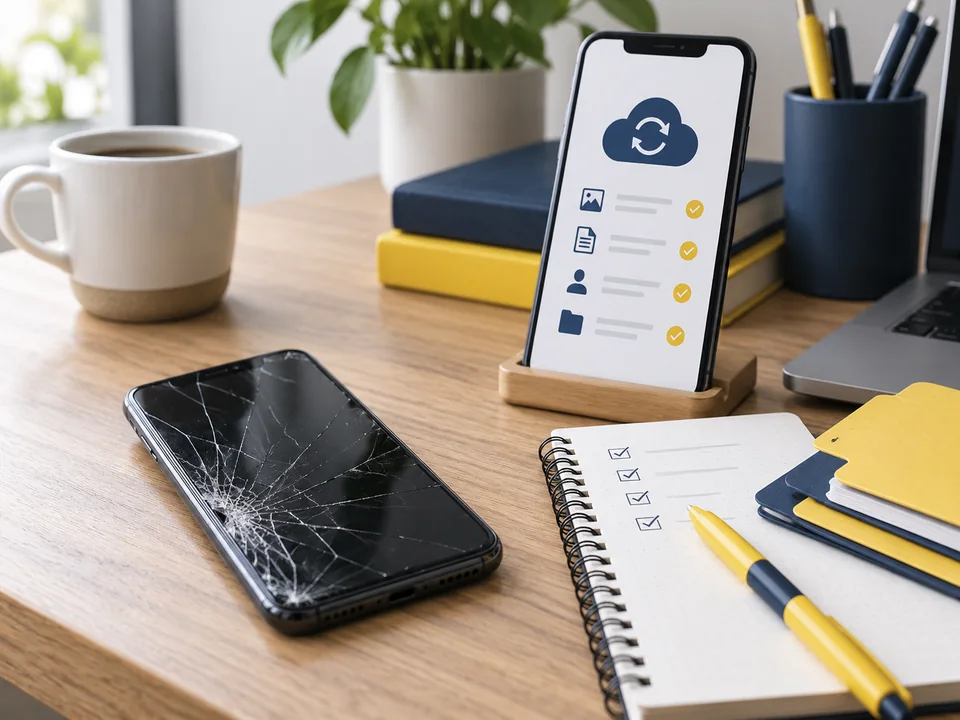
The safest time to plan for a lost or broken phone is while the current phone still works. Device backup, account recovery and knowing how your app stores data all matter if you need to move to a replacement device.
Understand what is actually backed up
On iPhone and iPad, Apple supports iCloud Backup and computer backups. Apple says a backup gives you a copy of information you can use if a device is replaced, lost or damaged. Check that backup is enabled and look at the date of the most recent successful backup rather than assuming it is current.
App data can behave differently depending on how the app stores information, so also understand ToolStack’s own backup and restore behaviour.
Prepare account recovery before an emergency
Keep your Apple Account credentials and recovery options current. Use a strong device passcode and biometrics where appropriate. If you use Stolen Device Protection, Apple notes that it adds extra security for critical operations when a device is away from familiar locations.
Do not store the only copy of recovery information exclusively on the phone you may lose.
If the device is lost, secure it promptly
Use Apple’s supported Find My and account-security tools. Apple recommends marking a missing iPhone as lost; Lost Mode locks the screen and can display a contact message.
If the phone may have been stolen, protect your accounts and follow police or insurer requirements where relevant. Avoid removing a device from your account prematurely if you have an active theft-and-loss claim or need Find My features.
Restore to a replacement device carefully
Apple’s restore process lets you choose an iCloud or computer backup. Check the backup date and size so you use the most relevant copy, stay connected to Wi-Fi and power while the restore completes, and allow time for apps and content to continue downloading in the background.
After the device is restored, open ToolStack and verify a sample of important records before assuming the migration is complete.
Check critical records, not just the app icon
Confirm that high-value tools, serial numbers, receipts, photos, mileage and reports you expect to see are present. If something is missing, stop adding new information until you understand whether you restored the correct backup or need another recovery method.
Keep notes of any recovery steps you take if the device failure affects business records.
Add resilience beyond a single device
Where ToolStack supports reports or exports, periodically create copies of information that would be difficult to reconstruct. Keep business-critical documentation in an appropriate second location rather than treating one handset as the only source of truth.
A backup strategy is useful only if you occasionally verify it works.
Common questions
Things people often ask.
Does iCloud Backup mean every app record is definitely recoverable?+
Not necessarily. Apple provides device backup and restore, but individual apps can store data differently. Check ToolStack’s own backup behaviour and verify restored records after moving to a new device.
What should I do first if my iPhone is stolen?+
Use Apple’s supported Find My and account-security tools promptly, including marking the device as lost where appropriate, and follow any police or insurer requirements that apply.
How do I know the restore worked?+
Open ToolStack after restoration and spot-check important tools, receipts, photos and mileage. Do not rely only on seeing the app icon on the new phone.
Official sources & further reading
Check the current guidance.
Rules, tax treatment, policy conditions and security advice can change. These official sources support the practical guidance above and are the right place to verify current requirements.